Search & Geocoding
In-Note Location Search
Map View adds the command "Add inline geolocation link" — map it to a keyboard shortcut (e.g. Ctrl+L or Alt+L).
This command inserts an empty inline location template: [](geo:).
When editing an inline location in this format, typing a name inside the brackets triggers a location search from the geocoding service. Selecting a suggestion fills in the coordinates without changing your link name.
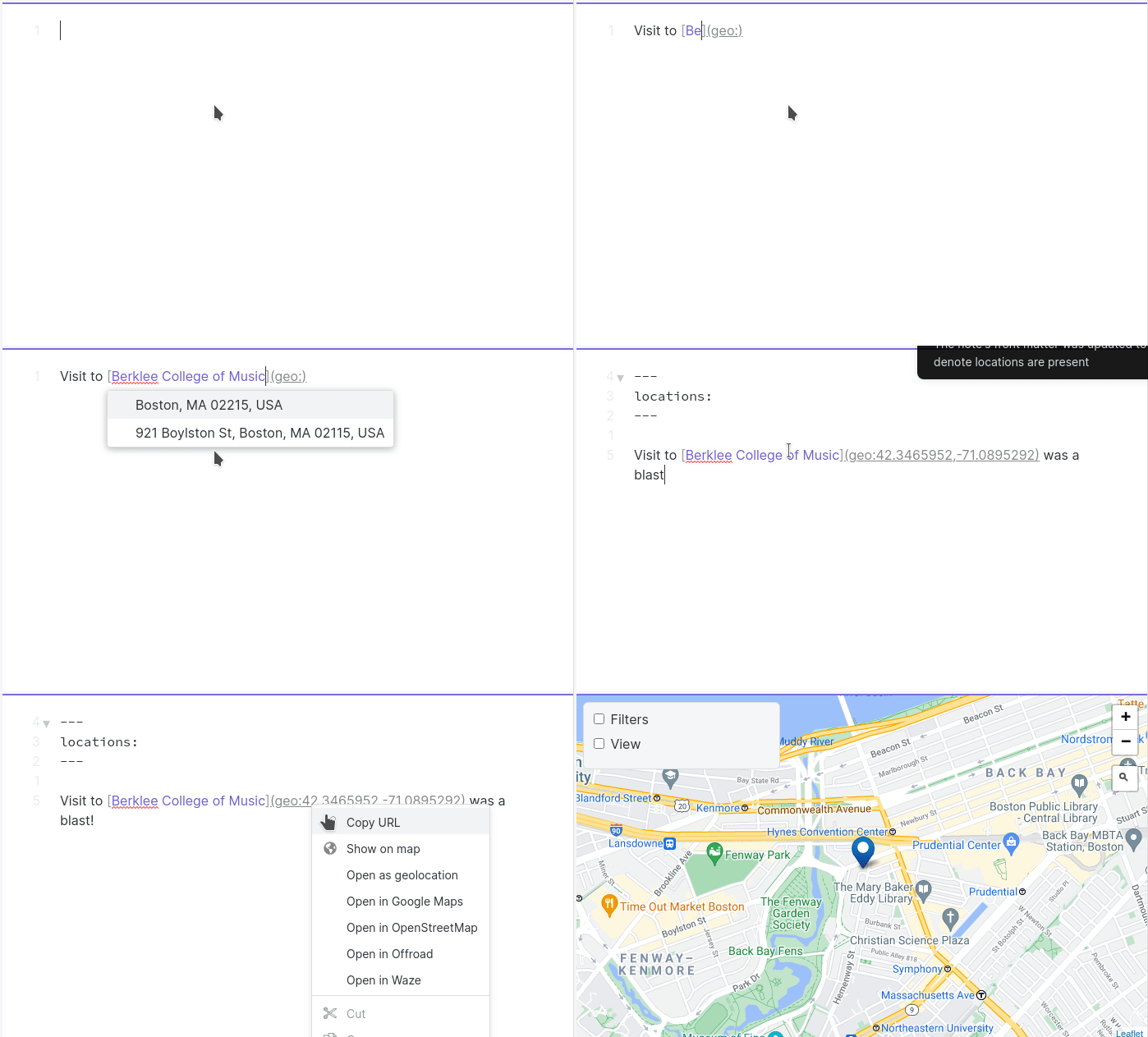
If the note isn't yet marked as containing locations (locations: in front matter), this is added automatically.
Default Provider: OpenStreetMap Nominatim
WARNING
To use the default search provider (OSM Nominatim), you must specify an email address in the plugin settings. No registration required — this is only to let the free service identify and contact you if your usage exceeds their limits.
Changing the Geocoding Provider
By default Map View uses OpenStreetMap. To switch to Google Maps:
- Obtain a Google Maps API key from Google Cloud.
- Enter the key in the Google Maps API key field in Map View settings.
The Google Geocoding API is free or very cheap for normal note-taking usage.
INFO
Usage of any geocoding provider is at your own risk. Verify you are not violating the service's terms of use.
Google Places API
For richer search results, enable the Google Places API (New) and turn on "Use Google Places for searches" in Map View settings.
For most note-taking usage, you will not exceed the Places API free tier.
Google Places Templates
When using the Google Places API, templates can extract additional result data.
Setup
Step 1: In the plugin settings under "Google Places data fields to query", specify the fields you want returned. See available fields. Example: id,types,businessStatus.
Step 2: Reference these fields in the Map View "new note template" using {{googleMapsPlaceData.fieldName}}.
Example template that populates a place_id field and adds a tag from the types field:
---
place_id: '{{googleMapsPlaceData.id}}'
---
#{{googleMapsPlaceData.types.0}}
Migrating to Google Places API (New)
Google introduced a new Places API in 2025. If you used Map View with the older API, you need to migrate as follows:
- Visit Google Cloud Console.
- Select your project if you have more than one.
- Go to APIs & Services → search for "Places API (New)" → click Enable.
- Go back → click Keys & Credentials → find your existing key → Edit API key.
- If under "API restrictions" you have "Restrict key", add "Places API (New)". Save.
INFO
If you use Google Places Templates, field names changed in the new API — you must explicitly add them in the plugin settings.