Offline Tiles
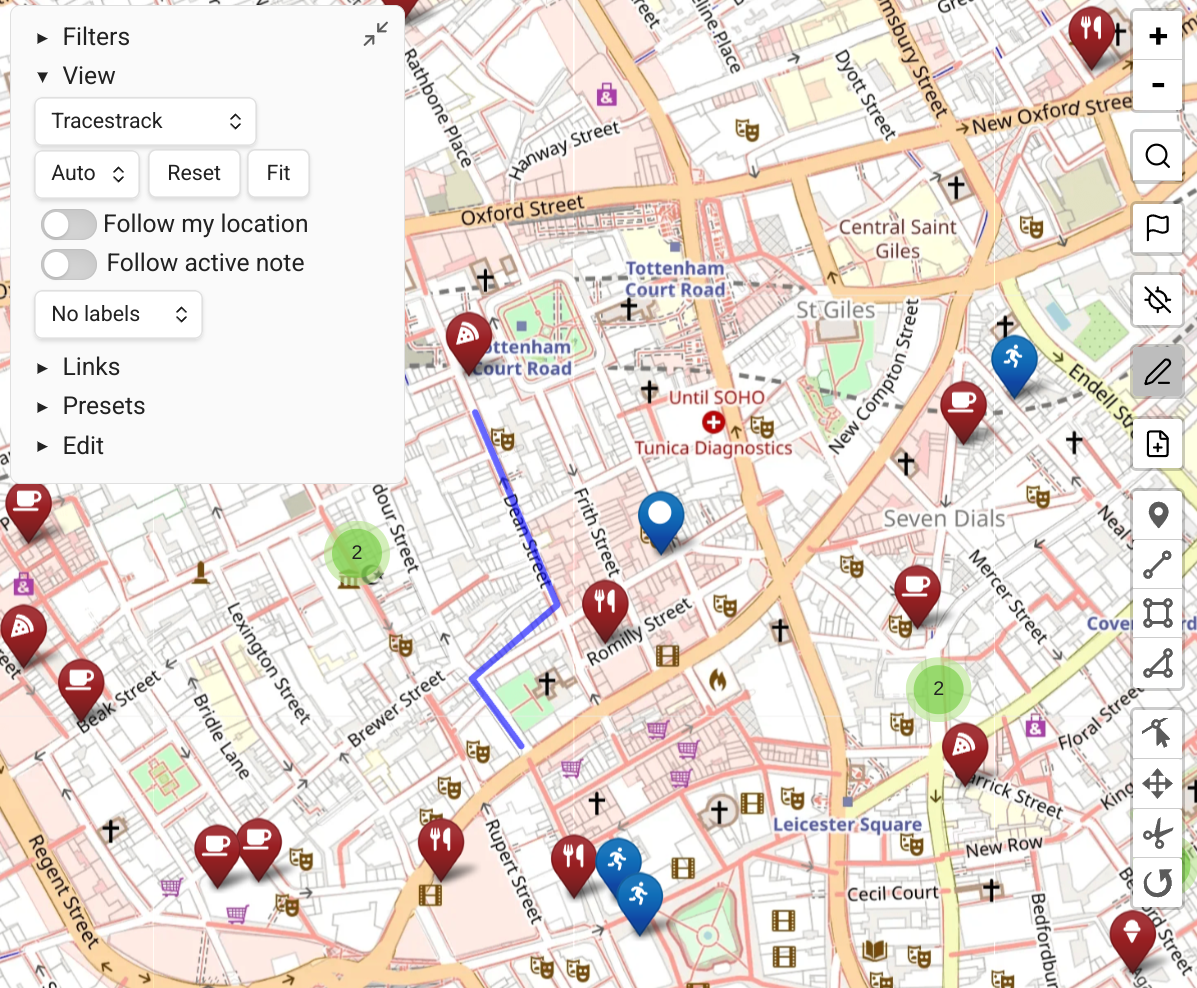
Map View can store map tiles locally for caching and offline usage.
How It Works
Whenever a map tile is needed, it is first searched in local storage. This leads to better performance and less data usage the more you use Map View.
By default:
- Every downloaded tile is saved to the cache.
- Tiles are stored for 6 months or up to 2GB (whichever comes first; oldest tiles are purged when the limit is reached).
These values are configurable under "Offline Maps" in the plugin settings.
Batch-Downloading Tiles
- Open the Downloaded Tiles dialog via "offline maps..." in the Map View context menu or "offline storage..." in the plugin settings.
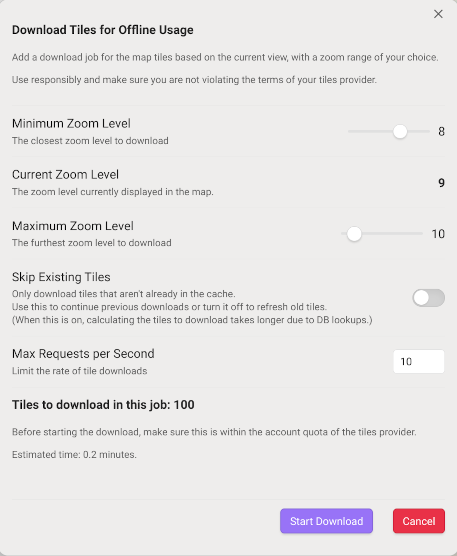
- Click "download tiles..." to open the new download job dialog.
- The dialog creates a download job based on the currently-active Map View — it saves the area currently displayed on the map.
- Choose a range of zoom levels for the download area.
- Optionally check "skip existing tiles" to only download missing tiles (note: old tiles may be inconsistent if the area has changed).
Terms of Use
Ensure that caching tiles locally does not violate your tile provider's terms of use. Most providers encourage caching to save bandwidth, but verify with your specific provider. To prevent accidental flooding of tile servers, each download job is hard-capped at 1 million tiles.
Managing Downloads
Once started, a download job runs in the background. Track its progress or cancel it via the Downloaded Tiles dialog.
Mobile Note
On iOS or Android, the OS may pause downloads when the screen turns off or close Obsidian entirely. There is no need to keep the dialog open on desktop.
Tips for Efficient Offline Storage
- Each click of the map's '+' button increases the zoom level by one — use this to assess the level of detail you want offline.
- The number of tiles and storage size increase exponentially between zoom levels. For large areas, don't go beyond 5-6 zoom levels.
- Store different areas at different detail levels: e.g. 4 zoom levels for your whole country, then 4 more for your city. Run consecutive downloads and mark "skip existing tiles" for the second pass.
- Adjust the "max offline tiles storage" setting if you need a large offline cache.
Checking Offline Coverage
To see which tiles are available offline, check "highlight offline tiles" from the Map View context menu. Available tiles are marked with a blue box. The mark updates when the map is redrawn — to visualize the automatic cache, navigate to an area that wasn't downloaded, zoom in, then zoom back out.
Tiles are stored in IndexedDB blobs locally. There is currently no support for syncing tiles between devices.