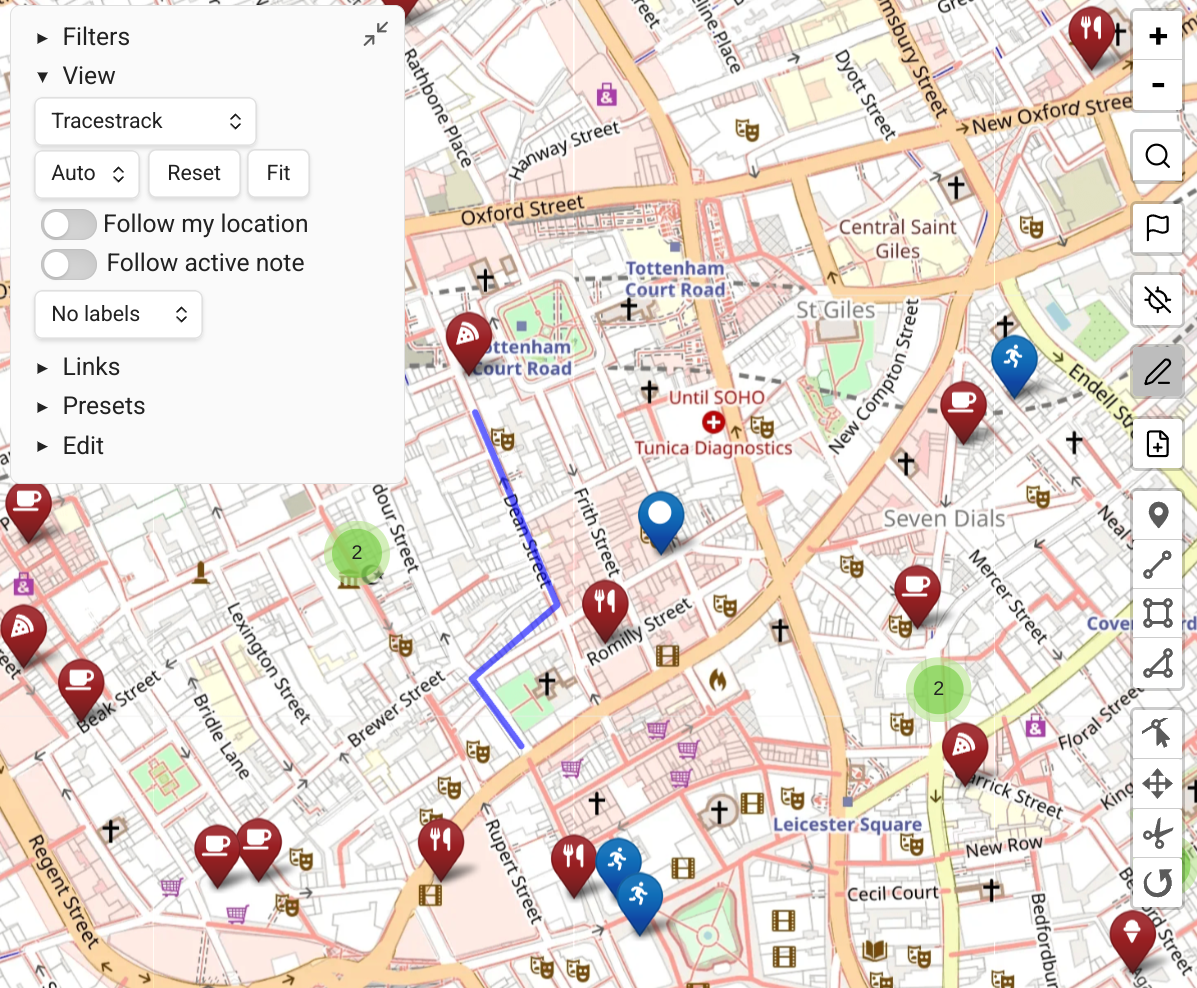
Presets
Presets let you save and quickly return to specific map states.
Saving a Preset
- Open the Presets pane in the map controls.
- Click 'Save as' and enter a name.
If you enter an existing preset's name, it is overwritten.
A saved preset includes:
- Map position (zoom & pan)
- Active query/filters
- Map source (optional — check the box in the "save as" dialog)
INFO
Presets do not store the map's theme (light/dark).
The Default Preset
The Default preset is special:
- Save it using the 'Save as Default' button.
- Return to it by clicking Reset, choosing "Default" from the preset list, or opening a fresh Map View with no previously saved state.
Using Presets with Queries
Presets are great for saving complex query states. For example:
- A preset filtered to
tag:#dogs AND tag:#foodfor finding dog-friendly restaurants - A preset for a specific trip with
linkedfrom:"Trip to Italy" - A preset for your local area at a specific zoom level
View URLs
You can save the current map state as a URL to open from any app on your computer or phone.
Click "Copy Map View URL" from the view's "more options" context menu, or "Copy URL" from the map Presets control.
The resulting obsidian:// URL:
- Opens Obsidian with Map View in the exact saved state
- Can be pasted inside a note as a Markdown link:
[Link name](obsidian://...)
This is useful for creating direct links to specific map views from trip plans, project notes, etc.