Adding Locations to Notes
Map View offers many ways to add geolocations to your notes.
From Anywhere in Obsidian
Map View adds an Obsidian command named "New geolocation note" that you can map to a hotkey and use anywhere in Obsidian.
This opens a dialog where you can:
- Search by address or location name (using your configured geocoding provider)
- Paste a URL using the built-in or custom URL parsing rules
In an Existing Note
Inline Geolocation Link
Create an inline geolocation link in the format [](geo:). If you start typing inside the link name (the brackets), Map View initiates a location search. Confirming an option fills in the coordinates.
To streamline this, Map View adds the command "Add inline geolocation link" — map it to a keyboard shortcut (e.g. Alt+L).
Front Matter Geolocation
Use the Obsidian command "Add geolocation (front matter) to current note". This opens the same dialog as "new geolocation note".
Paste as Geolocation
Map View monitors the system clipboard. When the clipboard contains an encoded geolocation (e.g. from Google Maps), a "Paste as geolocation" entry appears in the editor context menu.
Alternatively, right-click a URL or supported formatted string already in a note and choose "Convert to geolocation".
By default Map View parses URLs from:
- OpenStreetMap "show address" links
- A generic "lat, lng" encoding used by many services
Tip: Copying from Google Maps
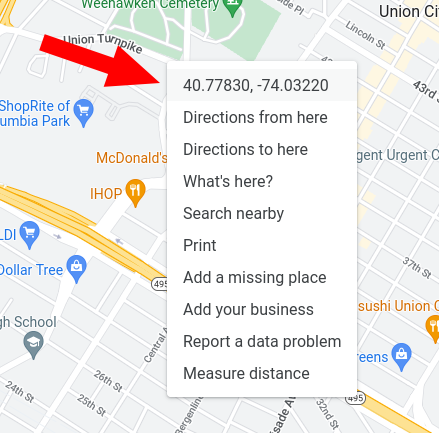
Google Maps on desktop offers an easy shortcut for copying universal lat, lng coordinates:
- Right-click anywhere in Google Maps.
- The first menu item is the universal coordinates — clicking it copies them to your clipboard.
- In any Obsidian note, right-click and choose "paste as geolocation", or paste the coordinates into any Map View search box.
From the Map
Right-Click to Create a Note
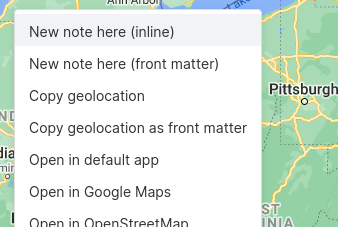
Right-click the map and choose "new note here" to create a new note at that location. You can create a note with a front matter geolocation or with an inline geolocation.
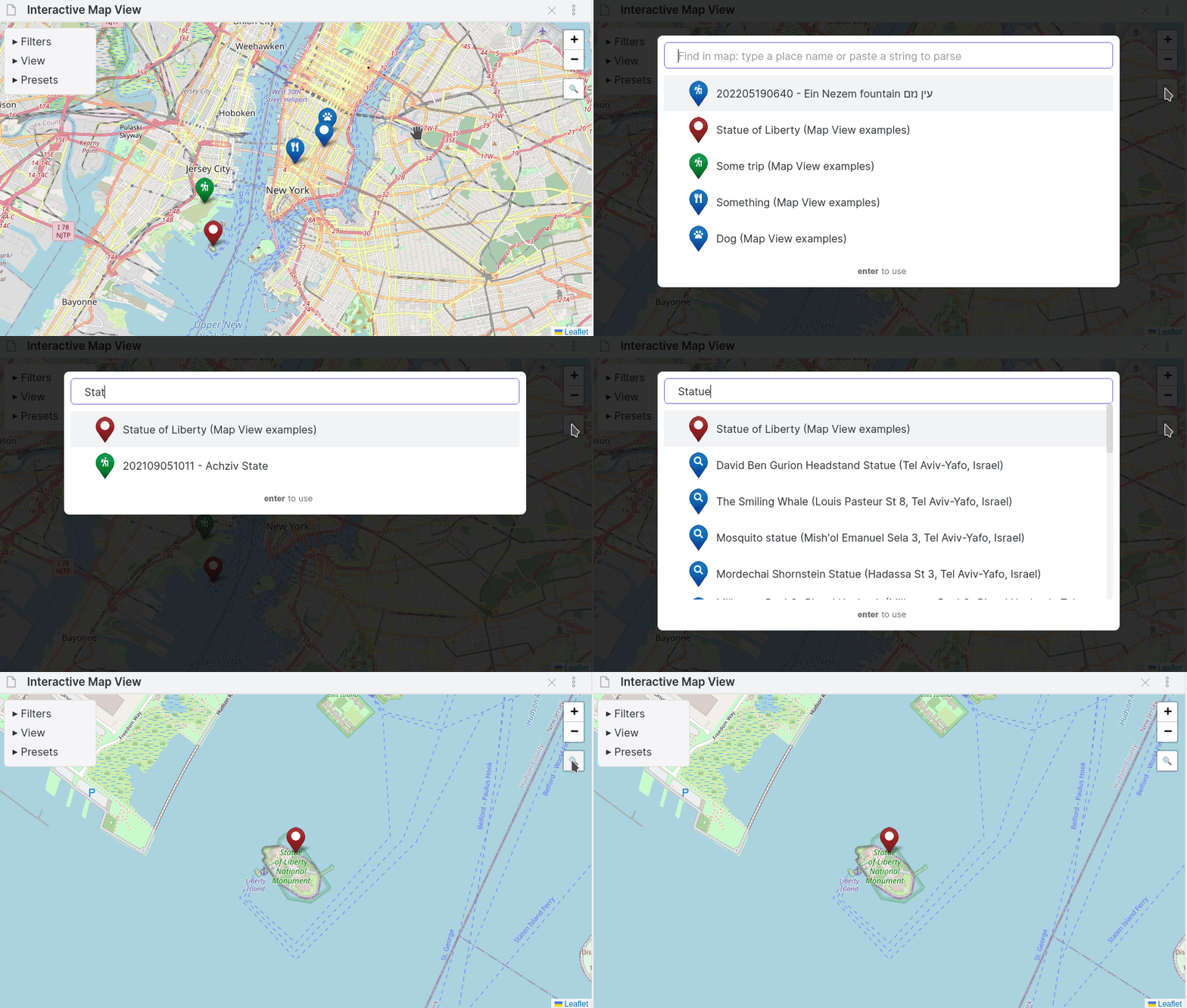
The map can be searched using the tool in the upper-right, so you can jump to any place. URL parsing rules work here too.
Edit Mode
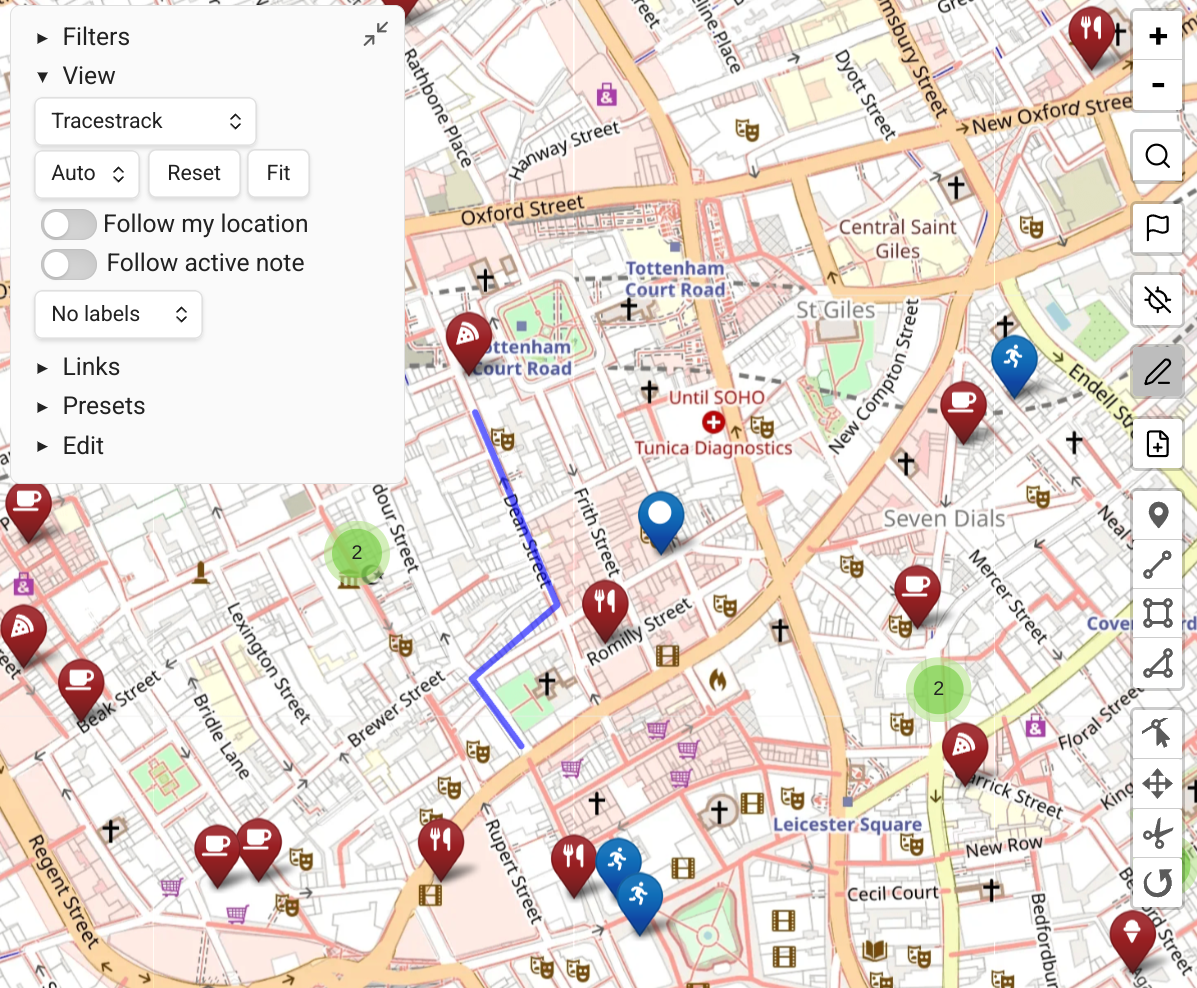
Click the pencil icon on the right to enter Edit Mode:
- Click the red "Choose Note" button to select which note to edit.
- Add markers or other shapes using the marker tools below the pencil icon.
- You can also right-click anywhere on the map and select "Add to Edit Mode note".
In Edit Mode you can also move or modify existing markers and paths.
Copy Geolocation
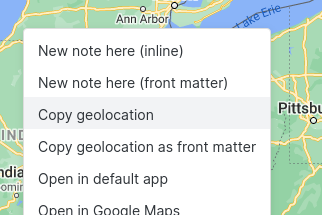
Right-click the map to use one of the "copy geolocation" options and paste the result into a note.
Import from KML
Map View has a built-in tool to convert geolocations from a KML file (e.g. from Google My Maps). See Import from KML.