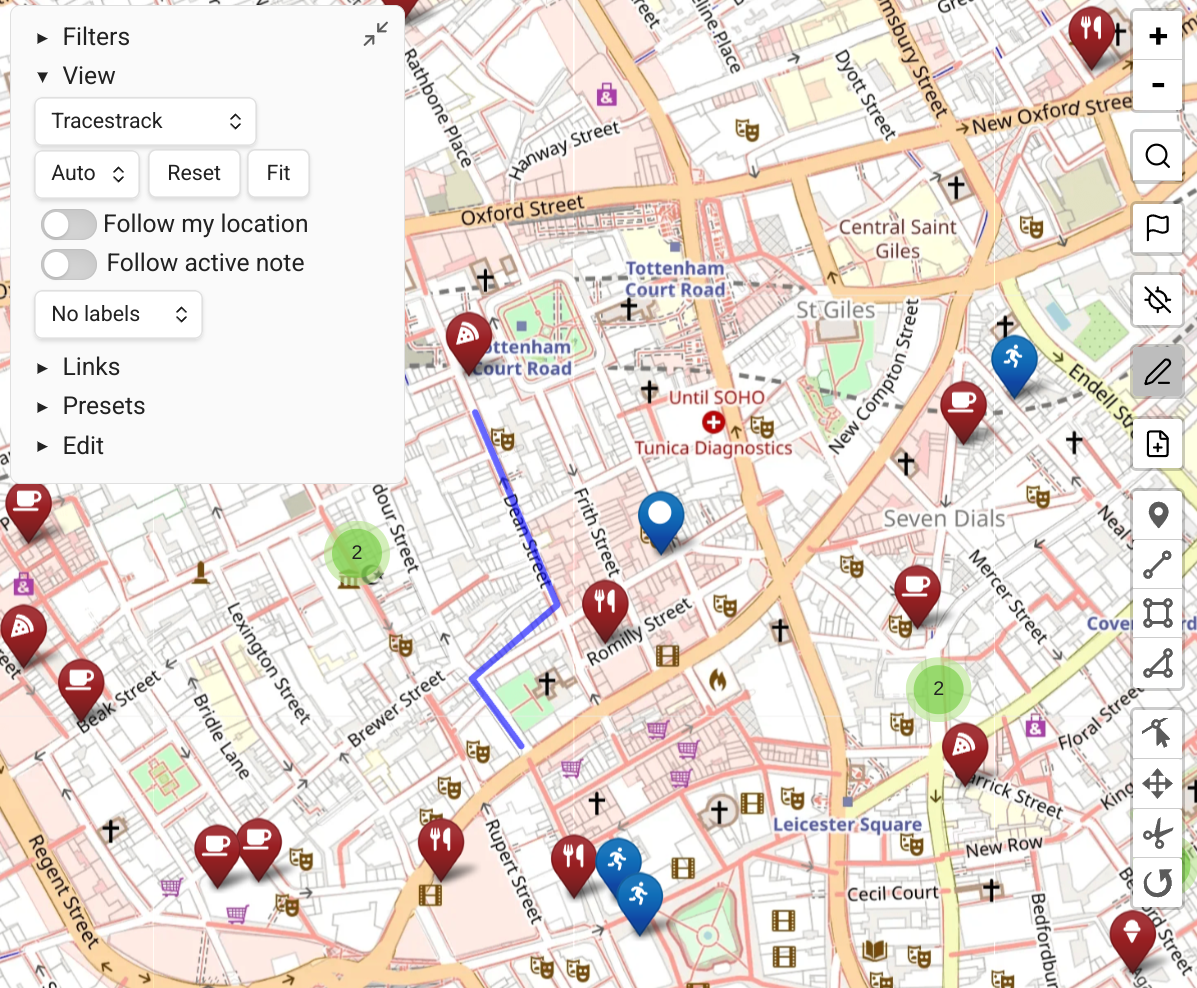
Links View
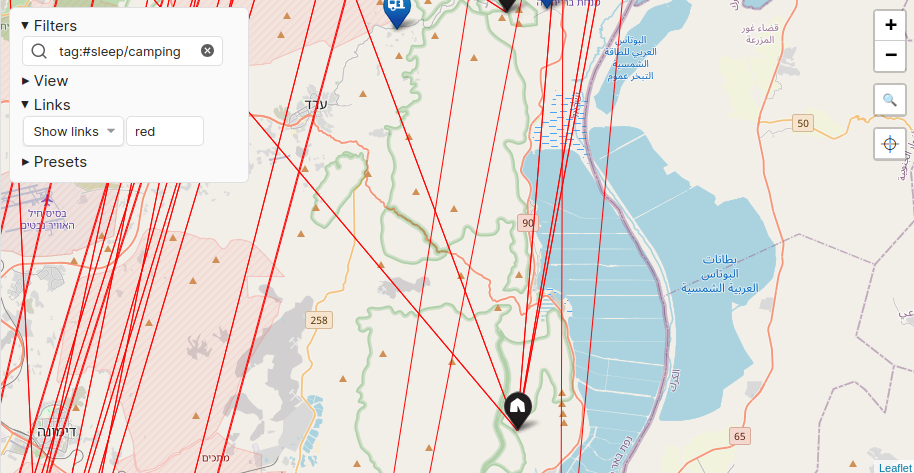
Map View can optionally draw edges between markers of linked notes, creating a visual representation of your note connections on the map.
Enabling Links
Open the Links drop-down in the map controls and choose "show links".
You can also configure the edge color using any valid HTML color name or hex value (e.g. #faebd7).
How Links Work
All markers in a source file are shown as linked to the markers in destination files.
A destination can be:
- A whole file — all markers in the source are linked to all markers in the destination file.
- A heading or block — all markers in the source are linked to:
- The front-matter marker of the destination file (if any)
- Only inline markers within the referenced heading or block
Performance Warning
WARNING
Heavily-linked maps are resource-intensive. Enabling links is advisable only when your markers are reasonably filtered.
Links may need to be recalculated every time notes with geolocations change. Open Map Views with thousands of visible links may cause noticeable lag when typing in geolocation notes included in those views' filters.