Routing
Map View can calculate routes between points either directly (via the GraphHopper API) or by launching an external tool.
How to Route
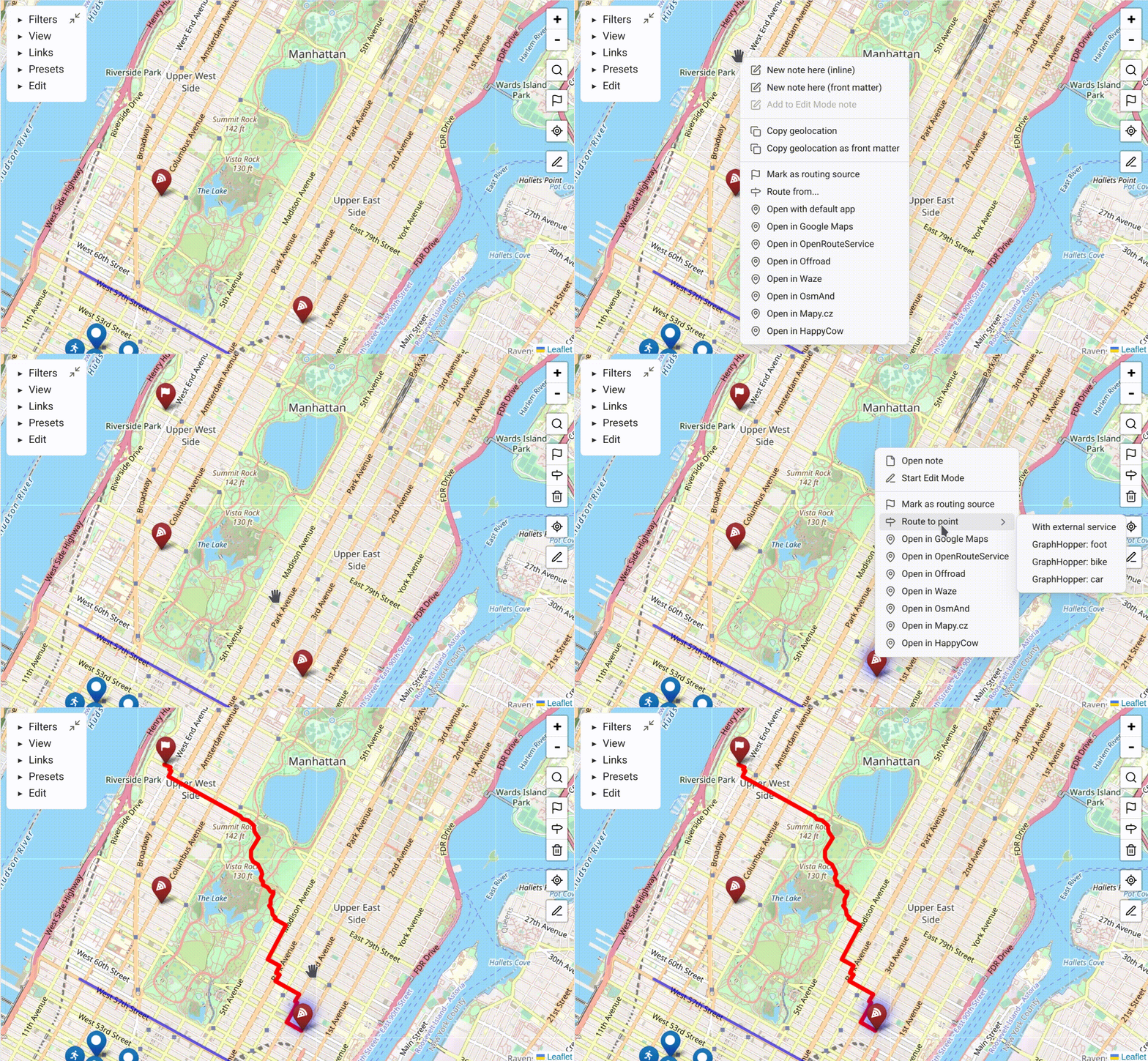
- Choose a starting point — right-click a marker or map location and choose "mark as routing source". Alternatively, click the flag icon on the right toolbar and select a marker.
- Choose a destination — right-click a marker or location and choose "route to point". Alternatively, use the "select a routing destination" button on the right toolbar after selecting a source.
- Choose between routing via an external service (e.g. Google Maps) or the GraphHopper API.
- If a GraphHopper option is selected, the route is displayed on the map with a time and distance estimate.
When GPS is active, you can use "route to point" from your current location without manually choosing a routing source. See GPS Support.
External Routing Service
By default, Map View is configured to open Google Maps as the external routing service. Change this in the settings under Routing → External routing service URL.
GraphHopper Configuration
GraphHopper is an open-source-based routing API with a generous free tier (as of mid-2025: 500 route requests per day).
- Sign up at graphhopper.com/dashboard/signup.
- Obtain an API key.
- Enter it in Map View Settings → Routing → GraphHopper API key.
Routing Profiles
The free plan supports 3 profiles: foot, bike, and car.
Paid plans offer more profiles — see the GraphHopper docs.
Extra Parameters (Advanced)
For fine-grained control, specify extra parameters to be added to GraphHopper requests. For example, snap_preventions fine-tunes which points are used as routing start/end.
See the full GraphHopper API reference.