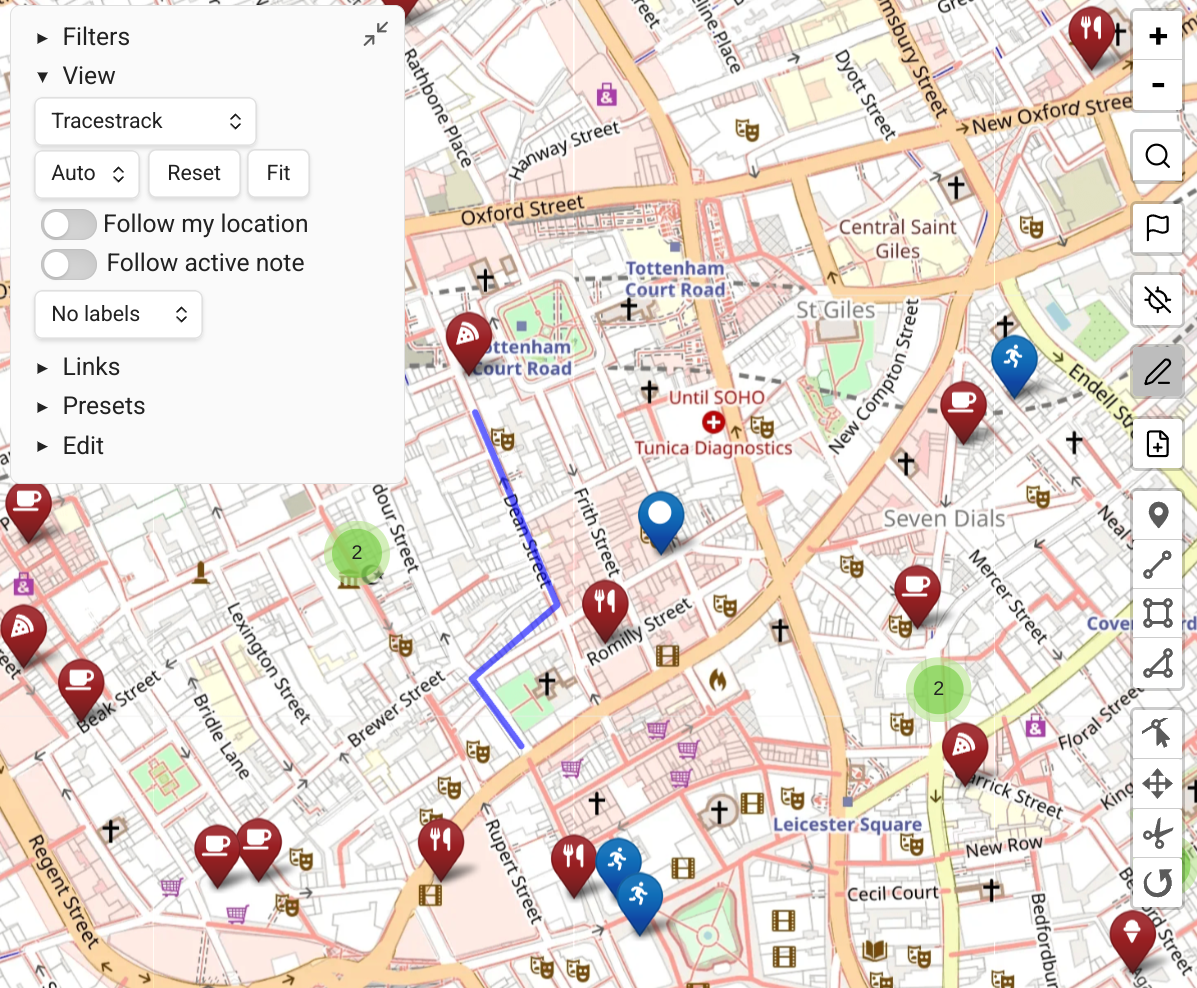
Quick Start
Map View is a powerful tool with many ways to use it. This page covers the most common flows to get you started quickly.
Minimal Setup
To get the most out of Map View, you'll probably want to configure a geosearch provider. Map View supports two options:
Option 1: OpenStreetMap (free, simplest, no account required)
- Open Obsidian Settings → Map View.
- Find "Geosearch email address" and enter your email (this is an OpenStreetMap Nominatim requirement which is used to distinguish API calls between different users, so they won't be pooled together and blocked.)
That's it. OpenStreetMap's Nominatim service is free - no registration needed.
Option 2: Google Maps / Google Places (most powerful, worth the 2-minute setup!)
- Obtain an API key from Google Cloud.
- Open Obsidian Settings → Map View and paste the key into "Google Maps API key".
- Optionally enable "Use Google Places for searches" for richer results (recommended!)
For most note-taking usage, the Google Geocoding API is free or very cheap.
See Search & Geocoding for full details on providers and advanced options.
Log a Geolocation
Here are a few ways to log a favorite location.
Option 1: From a Note
- Starting from a note (e.g. your daily note or a trip plan note), open the Command Palette and choose "Map View: add inline geolocation link".
- A link in the format
[](geo:)will be added where your cursor is. - Start typing a location name inside the brackets, and geolocation results will appear. Choose one and your inline location is complete.

Option 2: From the Map
- Open Map View (e.g. from the Obsidian ribbon icon).
- Search or locate a place using the search tool.
- Right-click the map and choose "new note here (front matter)" to create a note logging that location.
Option 3: From the Map using Edit Mode
- Open Map View.
- Switch to Edit Mode using the pencil icon on the right.
- Click the red "Choose Note" button to select which note to add items to.
- Place markers or other shapes on the map using the tools that appeared below the pencil icon.
- In Edit Mode you can also move or edit existing markers and paths.
Option 4: From Your Current Location
When using Obsidian Mobile, use the GPS-enabled commands such as "GPS: new geolocation note" to create a new note at your current location.
Customize the mobile toolbar to add Map View commands, e.g. "Map View: GPS: add geolocation at current position".
There are many other ways to log geolocations.
Create a Trip Plan Map
Here's one flow for trip planning.
Step 1: Log Some Locations
For most trips, use a single note with sections:
## To Visit

- [Place 1](geo:...) tag:activity
  - Some information about this place
- [Place 2](geo:...) tag:activity
  - Information about this place

## To Eat

- [Restaurant1](geo:...) tag:food
  - Opening hours, other data...
- [Restaurant2](geo:...) tag:food
  - Opening hours, other data...
Add places using one of the methods above. Notice the inline tags — these can be used for custom filters and creating different icons for different types of places.
Step 2: Map Them!
For a single note, click the note's menu (3 dots) and choose "focus (note name) in Map View".
You should immediately see a map of all your locations. Configure display rules to get different shapes and colors for your various tags.
Step 3: Save This Map
You have a few options:
- Open the Presets section on the map and save the current view, then open it from Map View anytime.
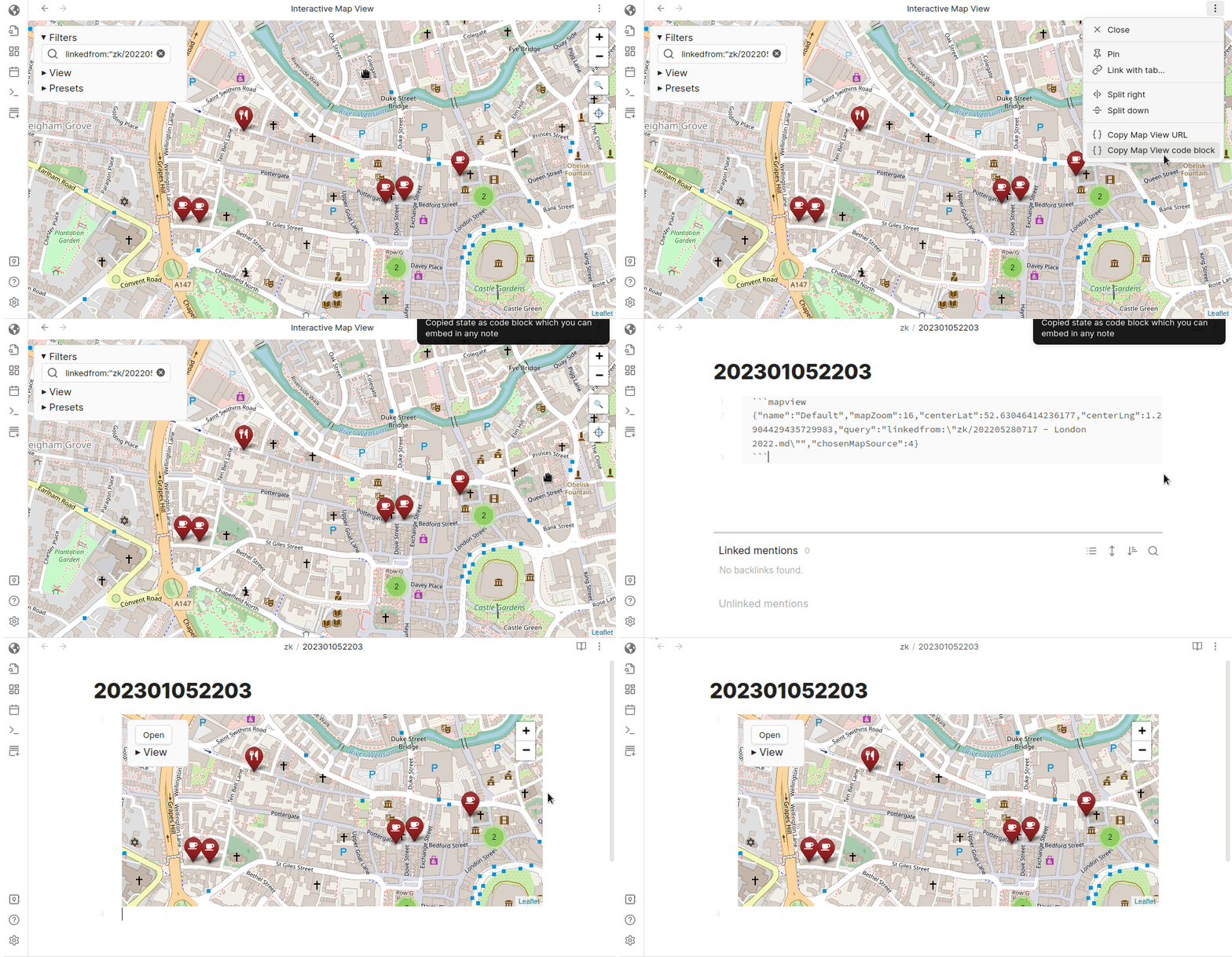
- Click 'Copy block' (or "Copy Map View code block" from the note menu) and paste the resulting code into a note to create an embedded map.
Build Your Personal GIS
The most powerful way to use Map View is to build a complete personal Geographic Information System (GIS) from your notes vault.
1. Collection
Collect pieces of information from various sources that often contain geographic information — restaurant recommendations, hike articles, places a friend mentioned.
2. Processing
When turning clipped information into notes, add geolocations:
- For mainly geographical notes (a restaurant, a hike, a place to visit): create a Zettelkasten note, then use "add geolocation (front matter) to current note" to tag the location.
- If the location isn't easy to find by name, open a mapping tool, locate the place, copy it in lat,lng format and paste it into the Map View search box.
- Tag your notes with useful metadata:
#hike,#season/spring,#dogs,#camping,#food,#food/pizza,#activity,#activity/kids,#not(for negative recommendations).
- For bulks of geographical information (a list of recommended coffee shops): create a note and add all geolocations via inline links. Map the "add inline geolocation link" command to a shortcut like
Alt+L.
3. Querying
- When planning a trip, look at the area and get a general understanding of what you know.
- Query for specific needs: e.g.
#dogs AND #sleep(dog-friendly camp sites) or#dogs AND #food(dog-friendly dining). See Queries for the full syntax. - When visiting an unknown area, launch Map View from Obsidian Mobile to discover what you know in the area.
See also this Reddit post about planning a vacation with Map View.