Paths
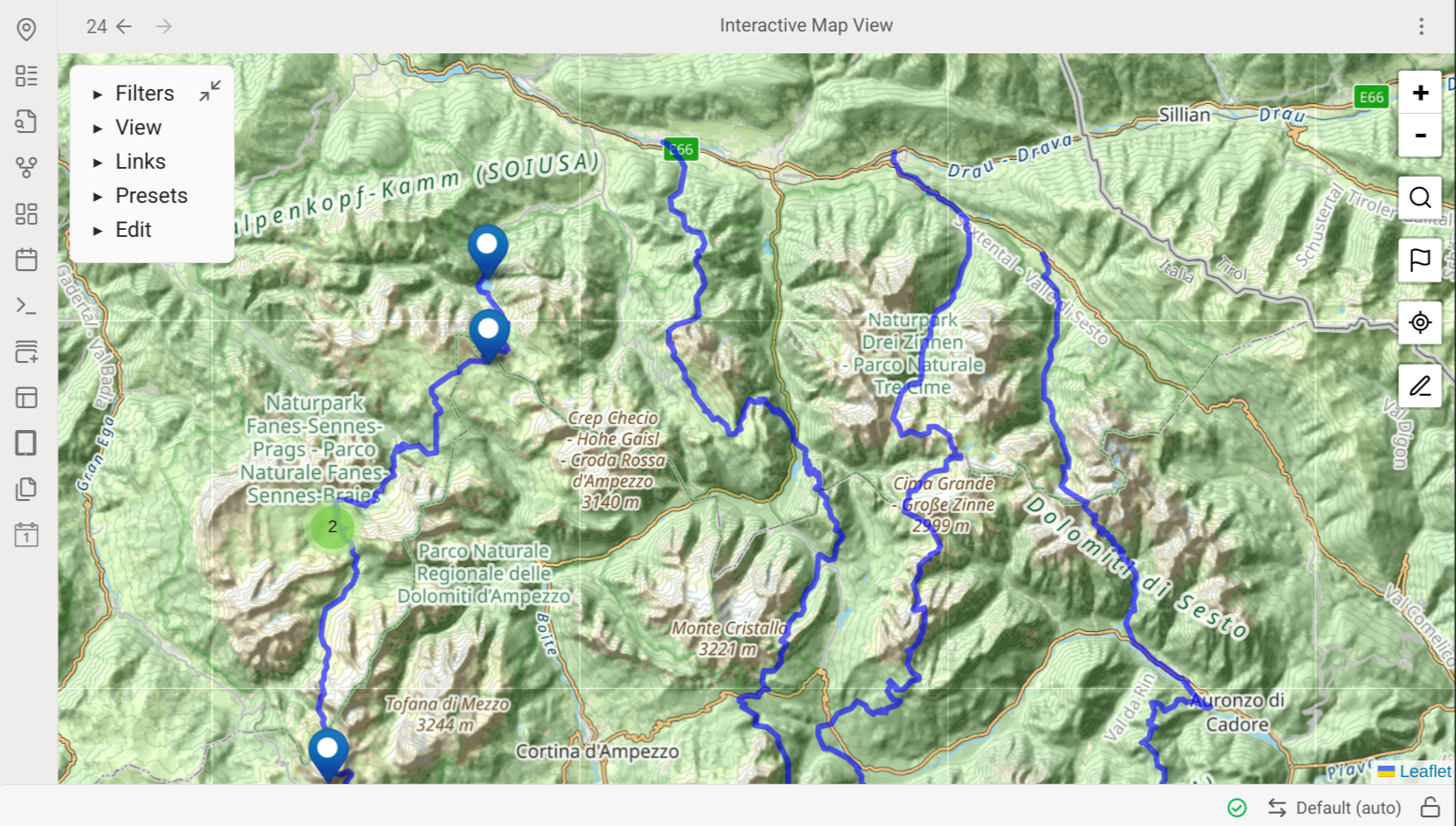
Map View supports paths in a variety of formats. Like markers, there is a distinction between stand-alone path files and inline paths.
Stand-Alone Path Files
Stand-alone path files are any GPX, KML, TCX or GeoJSON files in your vault. Map View collects them and displays paths based on display rules and filters.
Without any filters, all supported path files in your vault are displayed using the default path style.
Adding Stand-Alone Path Files
- Use Obsidian's "insert attachment" command to insert a path file as an embed to a note. This copies the file into the vault and adds it to the note in one step.
- From Map View, enter Edit Mode (pencil icon on the right), click the file icon, then click "import a path as vault attachment". The file is added to the vault's default attachments folder.
- Copy the file into your vault using your system's file explorer — it is automatically recognized.
Querying Stand-Alone Paths
Stand-alone paths support many query operators: path, name, and linkedfrom.
Stand-alone path files do not support tags. To apply display rules to specific paths, you can:
- Include a relevant string in the file name and use the
pathornameoperator. - Use the
linkedfromoperator: have a note "my runs" that links to all your GPX tracks, then uselinkedfrom:"my runs"to match those paths in a display rule.
Inline Paths
Map View supports GeoJSON paths stored in notes using a fenced code block of type geojson:
```geojson
{"type":"Feature","properties":{},"geometry":{"type":"LineString","coordinates":[[13.754839,42.030225],[14.033704,42.045011]]}}
```
tag:hike
A tag:a tag:b line directly below the code block attaches inline tags to the path.
Advantages of inline paths over stand-alone files:
- They support tags.
- They can be modified using Edit Mode tools.
Adding Inline Paths
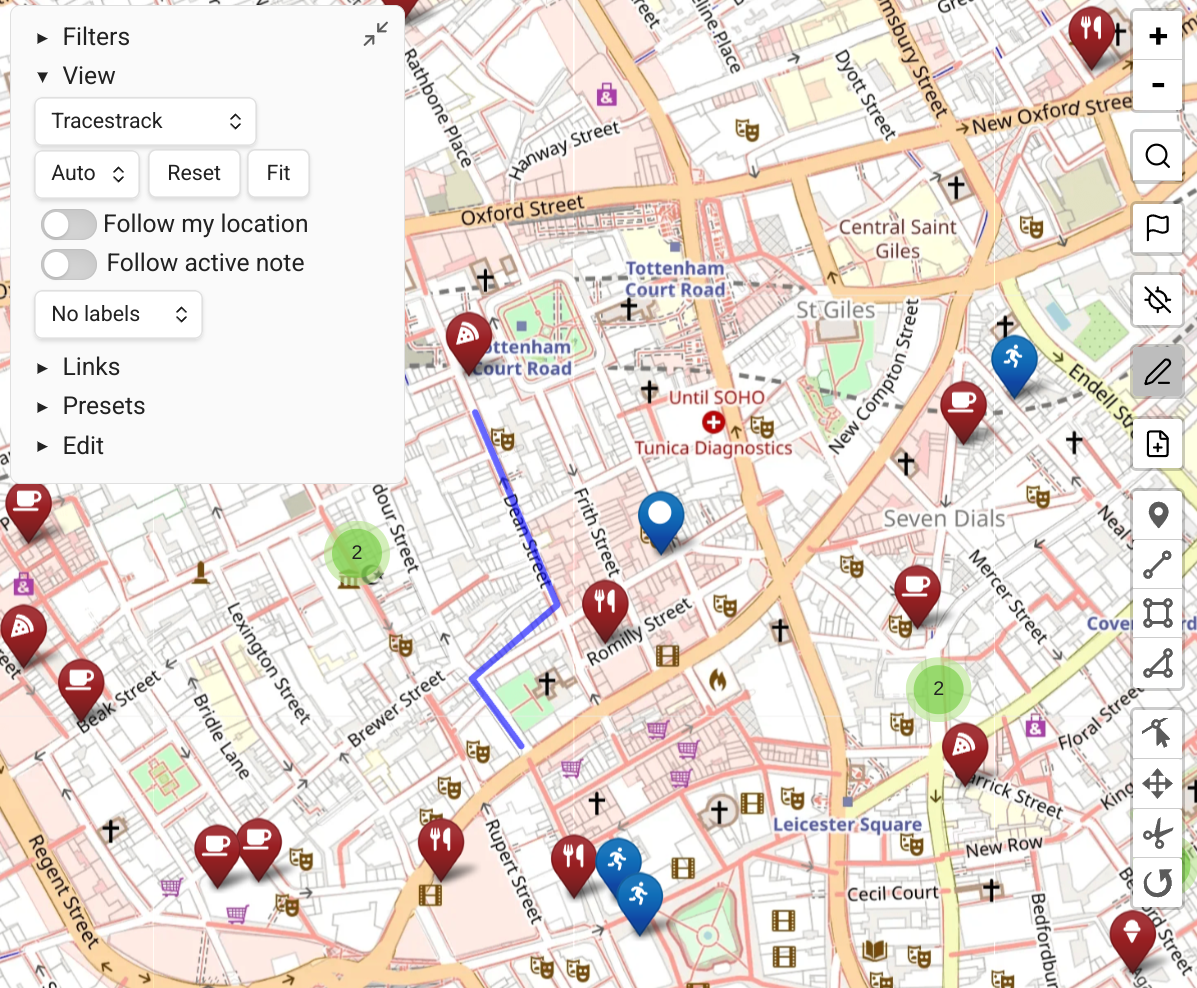
The easiest way is via Edit Mode (pencil button on the right):
- Enter Edit Mode and choose a note to edit.
- Draw a path on the map using the Edit Mode drawing tools — the path is added to the selected note when you finish.
- Or click the file icon in Edit Mode, then "import a path and add to Edit Mode note" — the path is converted to GeoJSON and added as an inline path.
INFO
You won't see the path appear if it is excluded from the current filter.
Styling Paths
Paths are styled using display rules, starting from the default rule and applying each matching rule in order.
The most useful path properties are:
| Property | Description |
|---|---|
color | Path color (any valid CSS color) |
weight | Line width in pixels |
opacity | Line opacity (0.0–1.0) |
A full list of advanced path properties (editable via JSON) can be found in Leaflet's path documentation.
INFO
Paths do not support badges, and no preview is available for them in the edit dialog.